





- Step 1: Create service accounts using scripts (easily available on GitHub).
- Step 2: Install python library
pip install sadrive. - Step 3: Follow the steps from this repo GitHub.
You can find video tutorials on how create service accounts and if you follow all the steps correctly you can getroughly 17TiB of google drive storage per gmail account.
24 Likes
This is bonkers…  Themmmmsssskkkkkk youmm.
People who don’t understand… let me breakdown for you 
SA_Drive_SimpleKit.zip (1.7 KB)
 Just unzip this, drop all your
 .json keys into the configs/ folder, then open terminal and run:
bash start.sh
That’s it. No setup mess. No confusion. Just massive Google Drive power using old free accounts (each .json = 15GB).
What’s going on here?
Summary
This trick uses old Google Drive accounts (called service accounts) made before April 15, 2025. Each one still gets 15 GB free storage.
You don’t use just one—you collect many of them and treat them like small containers. The tool then:
- Joins all the space together
- Hides the switching in the background
- Lets you upload/download like it’s one big drive
So instead of hitting a 15GB limit, it quietly moves to the next empty account, again and again.
 Why does this even work?
Because Google still gives 15GB to each of these old accounts.
You’re just:
- Mounting them like folders
- Letting the tool pick where to upload
- And combining their storage
You’re not cheating—you’re just managing space smarter.
 Real example:
If you have 100 of these old accounts:
- 100 × 15 GB = 1500 GB (or 1.5 TB)
- Upload anything—movies, backups, whatever
- Tool spreads it across those accounts automatically
 How much space can 1 Gmail unlock?
If you used 1 Gmail to create 12 Google projects (max allowed),
and each project had 100 service accounts:
- That’s 1200 accounts × 15GB = 18 TB total
18 terabytes. From 1 Gmail. Wild, right?
 Still confused?
Just think of it like this:
“I got many free fridges. Instead of stuffing one full, I spread the food across all of them. This tool knows which fridge has space and puts the food there for me—so I don’t have to think.”
11 Likes
Is there a template we can copy/create a ".json service account file? I’m just a newbie.
2 Likes
Here is the Missing Part, I hope It will help:-
 How to Create a Google Service Account and Generate a JSON Key
Follow these steps to create a Google Service Account and download its JSON credentials:
Step 1: Create a Google Cloud Project
- Go to Google Cloud Console.
- Click the project dropdown at the top.
- Click “New Project”.
- Enter a project name and click “Create”.
- After it’s created, switch to that project.
Step 2: Enable the Google Drive API (or your target API)
- In the left menu, go to “APIs & Services” > “Library”.
- Search for “Google Drive API”.
- Click on it, then click “Enable”.
Step 3: Create a Service Account
-
In the left menu, go to “IAM & Admin” > “Service Accounts”.
-
Click “Create Service Account”.
-
Enter a name and description for your service account.
-
Click “Create and Continue”.
-
Assign a role such as:
- For Google Drive: “Editor” or “Drive Admin”
-
Click “Done”.
Step 4: Generate the JSON Key File
- In the list of service accounts, click the one you just created.
- Go to the “Keys” tab.
- Click “Add Key” > “Create new key”.
- Choose “JSON” as the key type.
- Click “Create”.
Your JSON file will automatically download. This file contains the credentials used to authenticate your application.
 You’re Done!
You now have a working Service Account and its corresponding JSON credentials file, ready for use in automation or tools like SA Drive.
15 Likes
Detailed tutorial
- Go to this youtube video to create service accounts. SA_CREATION_UTILITY.zip (4.3 KB)
- Now go to https://groups.google.com and get your group mail (looks like
[email protected]) and then head to your original google drive and create a new folder. Go to the share option of the folder the add your group mail and give editor access to it. - Create a new folder
config_dirand copy the accounts folder created instep 1into that folder and createconfig.jsonfile and enter the folde
r id created instep 2in theparent_idpart and download glcone and enter its path inpath_to_gclone.exe(make sure you enter double backslash)"parent_id": "1at0dM_hN2GFVn8ANGOlFwvo5ZcJy38XC", "path_to_gclone.exe":"C:\\Users\\HEMAN\\Desktop\\\\gclone-l3v11\\gclone.exe" }``` - [OPTIONAL (but recommended)] Run
pip install virtualenvThen runvirtualenv venv,cd venv/Scripts,activate,cd ../... - Run
pip install sadrive. - You might now be able to see all the uploaded folders in the folder whose id you have entered in
step 3. Consider giving a star to the repo.
I have myself created a walkthrough for the entire process. Here is the link.
11 Likes
it says in the github after april 2025 new service accounts don’t have 15gb of google drive storage. so does this method really work now?
It’s still confusing. When you are sharing a tutorial on YouTube, there are many different tasks that may not be associated with this. There is a task connecting to the MongoDB server in one tutorial. In another tutorial, there is a Python file to create 100 accounts. So please instruct us which video or process we should follow, as we are total newbies.
2 Likes
Can somebody walk this us step by step. We don’t need to run 100 accounts in Python yet. We don’t need to connect to a database we don’t understand. What we need — and fully deserve — is guidance. Clarity. A voice that says, “Start here,” and walks beside us without assuming we’ve walked this road before.
2 Likes
Yes, it still works!!! You can check the walkthrough; it was recorded today only.
3 Likes
Thank you so much for the video tutorial. 
Thank you very much Abc_Xyz1. I now have what I want. 
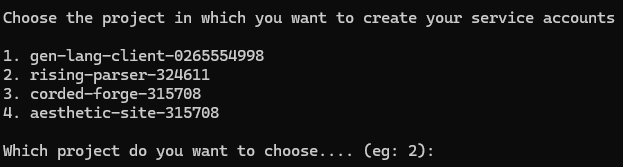
Successfully Enabled Services.

Now creating 100 SERVICE ACCOUNTS in [your-project-id]

Downloading service accounts now..
Traceback (most recent call last):
  File "C:\Users\[username]\Downloads\SA_CREATION_UTILITY\sa_creation_utility.py", line 115, in <module>
    downloadsa(sas_cls,proj_id)
    ~~~~~~~~~~^^^^^^^^^^^^^^^^^
  File "C:\Users\[username]\Downloads\SA_CREATION_UTILITY\sa_creation_utility.py", line 68, in downloadsa
    sas_cls.download_keys(projectid)
    ~~~~~~~~~~~~~~~~~~~~~^^^^^^^^^^^
  File "C:\Users\[username]\Downloads\SA_CREATION_UTILITY\sa_help.py", line 72, in download_keys
    self._create_sa_keys(self.iam,[projectid],'accounts')
    ~~~~~~~~~~~~~~~~~~~~^^^^^^^^^^^^^^^^^^^^^^^^^^^^^^^^^
  File "C:\Users\[username]\Downloads\SA_CREATION_UTILITY\sa_help.py", line 76, in _create_sa_keys
    all_projs = self._list_projects()
  File "C:\Users\[username]\Downloads\SA_CREATION_UTILITY\sa_help.py", line 40, in _list_projects
    return [i['projectId'] for i in self.cloud.projects().list().execute()['projects']]
                                        ~~~~~~~~~~~~~~~~~~~~~~~~~~~~~~~~~~~~^^
  File "[...]\venv\Lib\site-packages\googleapiclient\_helpers.py", line 130, in positional_wrapper
    return wrapped(*args, **kwargs)
  File "[...]\venv\Lib\site-packages\googleapiclient\http.py", line 923, in execute
    resp, content = _retry_request(
                    ~~~~~~~~~~~~~~^
        http,
        ^^^^^
    ...<7 lines>...
        headers=self.headers,
        ^^^^^^^^^^^^^^^^^^^^^
    )
    ^
  File "[...]\venv\Lib\site-packages\googleapiclient\http.py", line 222, in _retry_request
    raise exception
  File "[...]\venv\Lib\site-packages\googleapiclient\http.py", line 191, in _retry_request
    resp, content = http.request(uri, method, *args, **kwargs)
                    ~~~~~~~~~~~~^^^^^^^^^^^^^^^^^^^^^^^^^^^^^^
  File "[...]\venv\Lib\site-packages\google_auth_httplib2.py", line 218, in request
    response, content = self.http.request(
                        ~~~~~~~~~~~~~~~~~^
        uri,
        ^^^^
    ...<5 lines>...
        **kwargs
        ^^^^^^^^
    )
    ^
  File "[...]\venv\Lib\site-packages\httplib2\__init__.py", line 1724, in request
    (response, content) = self._request(
                          ~~~~~~~~~~~~~^
        conn, authority, uri, request_uri, method, body, headers, redirections, cachekey,
        ^^^^^^^^^^^^^^^^^^^^^^^^^^^^^^^^^^^^^^^^^^^^^^^^^^^^^^^^^^^^^^^^^^^^^^^^^^^^^^^^^
    )
    ^
  File "[...]\venv\Lib\site-packages\httplib2\__init__.py", line 1444, in _request
    (response, content) = self._conn_request(conn, request_uri, method, body, headers)
                          ~~~~~~~~~~~~~~~~~~^^^^^^^^^^^^^^^^^^^^^^^^^^^^^^^^^^^^^^^^^^
  File "[...]\venv\Lib\site-packages\httplib2\__init__.py", line 1396, in _conn_request
    response = conn.getresponse()
  File "C:\[path-to-python]\Lib\http\client.py", line 1430, in getresponse
    response.begin()
    ~~~~~~~~~~~~~~^^
  File "C:\[path-to-python]\Lib\http\client.py", line 331, in begin
    version, status, reason = self._read_status()
                              ~~~~~~~~~~~~~~~~~^^
  File "C:\[path-to-python]\Lib\http\client.py", line 292, in _read_status
    line = str(self.fp.readline(_MAXLINE + 1), "iso-8859-1")
               ~~~~~~~~~~~~~~~~^^^^^^^^^^^^^^
  File "C:\[path-to-python]\Lib\socket.py", line 719, in readinto
    return self._sock.recv_into(b)
           ~~~~~~~~~~~~~~~~~~~~^^^
  File "C:\[path-to-python]\Lib\ssl.py", line 1304, in recv_into
    return self.read(nbytes, buffer)
           ~~~~~~~~~^^^^^^^^^^^^^^^^
  File "C:\[path-to-python]\Lib\ssl.py", line 1138, in read
    return self._sslobj.read(len, buffer)
           ~~~~~~~~~~~~~~~~~^^^^^^^^^^^^^
ConnectionResetError: [WinError 10054] An existing connection was forcibly closed by the remote host
getting this error, I checked website and it does create 100 accs but fails to download while showing that error 
Had same error but retried and worked 100%
Hey do I have to use the terminal everytime to upload anything? Is it possible to upload via android devices?
Op thanks a lot for this. Works for me and was able to successfully upload first file but subsequent files failed to upload. I’ve tried 5 different files now, all failed.
1 Like
No dude. It takes time but I uploaded a second file.
1 Like
https://www.googleapis.com/upload/drive/v2/files?supportsAllDrives=true&alt=json&uploadType=resumable returned “Service Accounts do not have storage quota. Leverage shared drives (https://developers.google.com/workspace/drive/api/guides/about-shareddrives), or use OAuth delegation (http://support.google.com/a/answer/7281227) instead.”. Details: “[{‘message’: ‘Service Accounts do not have storage quota. Leverage shared drives (https://developers.google.com/workspace/drive/api/guides/about-shareddrives), or use OAuth delegation (http://support.google.com/a/answer/7281227) instead.’, ‘domain’: ‘usageLimits’, ‘reason’: ‘quotaExceeded’}]”>
2025-06-28:02:56:57,354 WARNING [http.py:140] Encountered 403 Forbidden with reason “quotaExceeded”
How do we fixed the exceeded quota error? thanks +1
1 Like
Thank you for sharing. When I run the script, it gets stuck at creating the 100th service account. It seems like my main email account with the role of “owner” uses one of the 100 “OAuth user” counts leaving 99 left and thus not letting the script create the 100th service account. Even when I stop the script and try to manually create the 100th service accout, it keeps giving me an error. Can you please help me resolve this?
Starting April 15, 2025, new Google Cloud IAM service accounts will no longer receive free Google Workspace storage—so uploads via Drive won’t work for these accounts. However, service accounts created before June 22, 2025 (which I’ve verified) still retain upload capabilities. New accounts beyond that date won’t have free storage attached.
So, this trick is useless for all the new users.
4 Likes
 !
!